Nobody likes to send an email and wait 48 hours for an automated answer, or worse, to be put on hold for more than 30 minutes while being assured that they are the next caller in line.
Customers prefer to communicate with you on their conditions and in their own time, or they’ll visit another website that allows it.
You can give immediate and practical support to visitors to your website with the help of a WordPress chat plugin.
Chat plugins on WordPress are beneficial for engagement and worthwhile for various reasons.
What’s a Chat Plugin on WordPress?
WordPress chat plugins are the simplest way to interact with visitors and get comprehensive customer information. It is an effective solution for establishing your product or service as a market leader by quickly responding to customer questions.
You might already have a website that you like and that serves your needs at this point. However, it would be unfortunate to start from scratch because you want to include live chat features.
These chat plugins help you to easily add live chat to your online site using an interface that appears to have always been there.
You can target particular pages to display the chat function using most of the WordPress plugins available. Additionally, you are free to decide exactly what should happen when the chat session has closed.
The Most Recent Chat App Trends to Consider
1. Personalizing Customer Experiences
Personalization has become an essential part of the marketing industry for every type of business. Customers want companies to focus on their issues and provide tailored solutions for their needs.
Before responding to the customer’s issues, it is beneficial to research their information. This covers their account type, purchasing history, and any other data.
This will help you recognize a pattern between the problem and the solution for people.
2. Rise in Automation Levels

Support representatives frequently have to respond to the same daily inquiries, which is one of the things they gripe about the most.
Customers may ask those questions because of a specific aspect of your offering or business, which you cannot prevent.
However, doing that still takes time and prevents support staff from tackling more complex problems. Fortunately, since chatbots are becoming more widespread daily, they don’t need to be concerned about it.
Automation enables businesses to deliver cost-effective service in a channel that customers already favor. As a result, live chat is even more critical for enterprises.
3. Faster Response Time
Many customers dislike making calls because every call goes via the IVR system. However, the lengthy wait time for consumers makes this method less than ideal. A live chat window allows for immediate consumer communication.
A quick connection with the customer service team allows a customer to ask a question before purchasing.
Live chat support assists a firm in gathering consumer feedback and suggestions after a sale. Consequently, you have the opportunity to enhance or update your goods and services.
4. Increase in Digital Support Offerings
Although phone-based customer service was quite effective in the past, it isn’t as effective now. The reason is how much more helpful digital assistance options can be to customers than phone support services.
Customers are requesting more digital support options, which allows several opportunities to connect with them and persuade them to buy your products.
Since most consumers prefer using a free website chat feature or a chat plugin to contact you, you can use that communication channel to showcase promotions and present special offers.
5. Self-service Options
Letting your customers handle things themselves helps them feel better at the end of the day and decreases the likelihood that they will experience a similar problem.
Before assisting, customer support teams can offer their clients self-support options, and most customers prefer to use those choices before contacting support.
You can configure the chatbots to highlight all the details you want your customers to know or to direct them to a guide or tutorial that can be of assistance.
Benefits of Having a Chat Plugin on Your WordPress Website

Convenience
Online chats are convenient because, like phone calls, users need not physically travel to the service provider’s location to connect. Communication can be started at any moment and from any place. Chatting is the best and easiest option for both business and personal contacts.
Several WordPress plugins offer broadcasting or live screen sharing along with online conversations. It helps with immediate solutions while making multitasking simpler.
Brand Promotion
If a customer has a positive opinion about your services, they will only consider your company the next time. This means that you can promote your brand through live chat.
You can assess your communication and concentrate on the clientele. You can then provide a brand image that appeals to your client’s minds.
Although consumers may have several firms in mind, they choose your brand because of the excellent customer assistance they receive.
Efficient Service
Most live chat platforms allow for multiple conversations. That means your customer service team serves numerous clients at once rather than responding to one customer query at a time.
Users Tracking
The WordPress live chat plugin allows business owners to monitor customer activity on their websites. Of course, it goes without saying that this way, you can obtain pertinent data about your users and successfully launch business advertising and marketing.
Limited Disruption
Texting is generally simpler than calling the support team, whether it is for work or personal reasons. In addition, live chat can be used even with slow internet.
Contrarily, background noise might interfere with and degrade the call’s quality during phone calls.
Therefore, there is little chance of a disturbance when chatting with customers online.
Security
In the case of all companies, privacy and security are the top priorities. As a result, they try to adhere to those rules strictly in their interactions.
WordPress plugins offer end-to-end encryption for live chats. As a result, you can assure your customers that your transactions and security details are always secure.
Comments and Recommendations
You may keep track of the visitor’s activities on your website and their questions for the support team using some WordPress live chat plugins. This assists future target marketing.
On the other hand, you can note any genuine comments or ideas about your services during the live chat. Then, if any problems arise, you can fix those.
What You Should Look for in a WordPress Chat Plugin
- User-friendliness
The effectiveness of the chat experience for all users will be significantly influenced by the interface your agents use to communicate with clients. Moreover, the user-friendliness of the interface will determine the level of customer satisfaction that your business will have.
Third-party dashboards are typically more versatile and advanced. However, their usefulness to your agents will depend on their individual preferences and current work processes.
Make sure to ask your agents what they think about the usability of the WordPress chat plugin you decide on.
- Channels Supported
Live chat is the best option for managing many chats because it supports multiple conversations well. In addition, with the powerful plugin, customer support can deal with several inquiries at once.
- Easy Onboarding
Clients usually favor live chat over other communication methods like phone or email because of its unique experience.
However, the secret to why live chat benefits businesses isn’t just that your customers find it appealing. It also simplifies incorporating a new employee into a company or familiarizing a new client with the products.
- Supports Preset Messages
The customers don’t have to leave the purchasing window to call you when live chat is available on your website; they simply need to launch the live chat widget and begin writing their issues. Their messages will be met with preset messages that you can add to greet and reply to your customers.
- Has Triggers and Targeting Options
Every marketing manager will have criteria to evaluate which triggers would perform best for them based on the available information and the nature of the business.
However, the following are several types of triggers to consider while putting up triggered chat widgets:
- Triggers Based on Visits
Your website’s first-time visitor needs to be handled differently than a loyal user. While a warm welcome to a first-time visitor may be sufficient, a returning client may require extra attention because they can be high-quality leads.
- Triggers Based on Time
One of the most popular types of proactive communication is time. The length of time a visitor spends on a page activates time-based triggers. Give your customer time to explore on their own after setting time-based triggers before giving them a message.
- Site-Specific Triggers
Chat plugins’ whereabouts are just as crucial as their when and how. A customer may find easy-to-use chat widgets considerably more beneficial than pop-up messages if placed on specific pages.
- Data-Based Triggers
An excellent method to add personalization to a chat message is to tailor it depending on client information. Knowing their preferred language and region, for example, can help you start a dialogue that will appeal to them more.
- Highly Customizable
You should be able to customize your chat widget’s colors, chat button location, widget modes, agent status, and other elements. It will help you match your brand’s colors and set the website’s tone to market your business.
- Relatively Affordable
Businesses should consider affordability to increase conversion rates and save support expenses while increasing customer satisfaction.
The critical thing to remember is that the money you are paying for the plugin should be worth the features you get in exchange.
What’s Next?
The live chat plugin for WordPress is an innovative tool for business. Do you want to know how it helps your company?
There is a direct link between consumer engagement and market performance. Engaged customers strongly associate your brand with themselves, which results in more sales.
Considering the wide range of options on the market, keeping customers is a difficult task. Therefore, a company’s main objective is to satisfy its customers. It should go without saying that if your company is committed to providing exceptional customer service, you must concentrate on raising client engagement.
Your brand will undoubtedly benefit from this, and speaking of consumer involvement, live chat provides the opportunity for consistent, round-the-clock customer engagement.
WordPress chat plugins are perfect for all businesses, no matter how big or small. The plugins support numerous features, including offline messaging, unlimited live chat agents, various chat box designs, and much more.
You can save offline communications and afterward view the history of the live conversations, even if necessary.
Another central element is that you may include GIF files, animations, polls, and even consumer surveys in your chat messages. This enhances the appeal and worth of your conversations.
You can also modify your support and activate notifications for new tickets. You can quickly boost sales and address client complaints with a fully working live chat plugin.
Now, you may understand more clearly the advantages of using WordPress plugins for conversational marketing in your company. It’s simple to install these plugins to your site and use this opportunity to benefit from the expansion of your organization.
Getting Started with WordPress Chat Plugin with Chaty
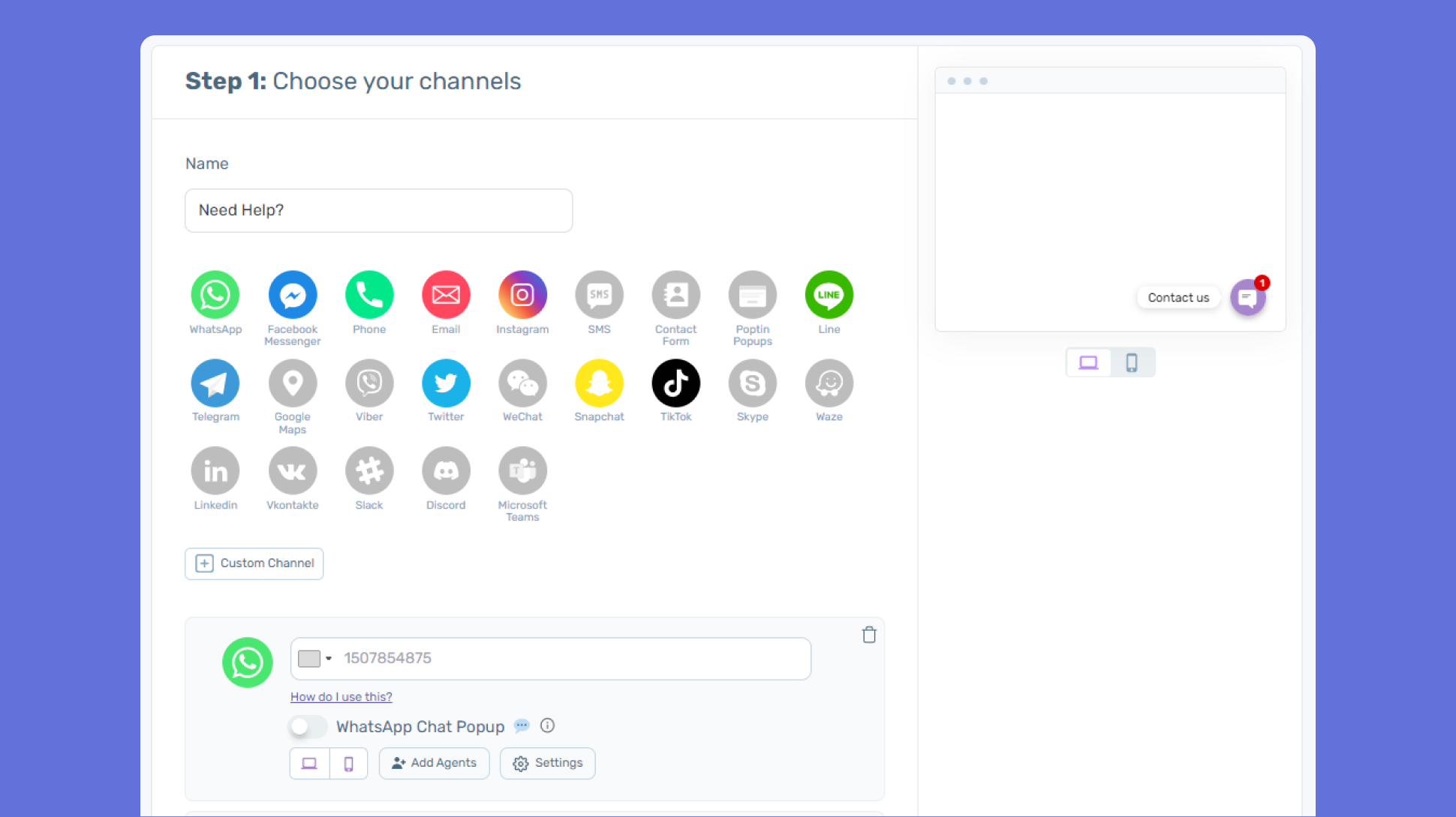
Are you trying to find a call button or a chat button? Chaty is the ideal chat WordPress plugin for you.
Chaty is simple for communicating with your customers on WhatsApp, Viber, Facebook Messenger, Line, and other chat widgets.
Your visitors can use their preferred chat applications. A majority would like to contact you through those applications.
With Chaty, you can continue conversing with your visitors even after they exit your site.
Chaty is also available on Shopify, Wix, and Ecwid. It also has a SaaS version that users can launch on any website.
You can design chat buttons with the plugin for many communication channels. For instance, you might set up buttons on the same page for Line for Asian users because it’s more prominent there. On the contrary, you may set up WhatsApp for English speakers. You can reach a larger target market in this manner.
Use Chaty to create customizable widgets and specify where you want them to appear on the page. To determine each button’s effectiveness, you can link Google Analytics to it.